KillBackground: Kill All iOS Background Apps at Once

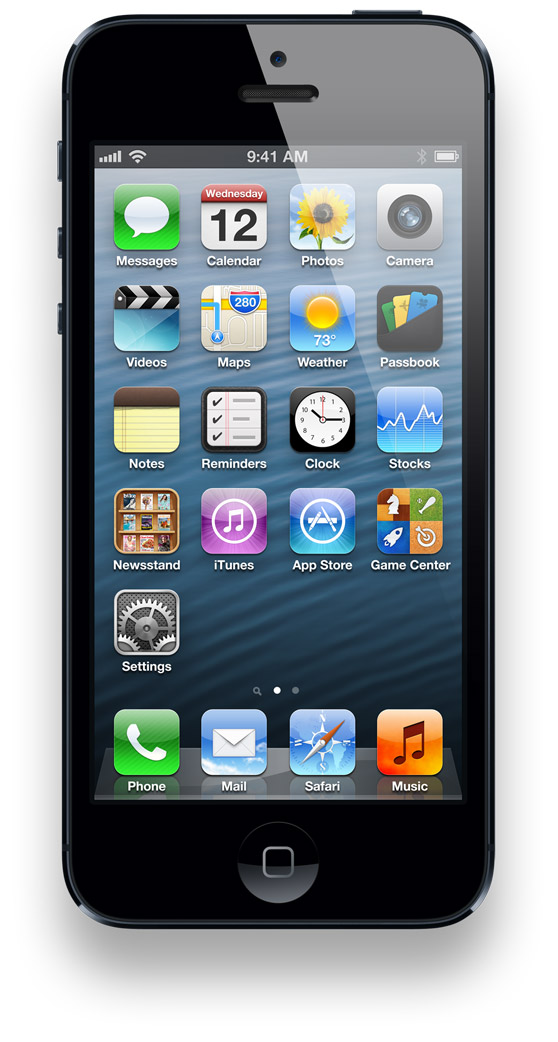
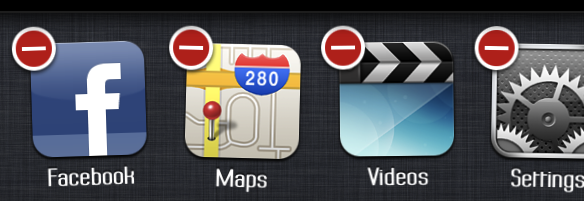
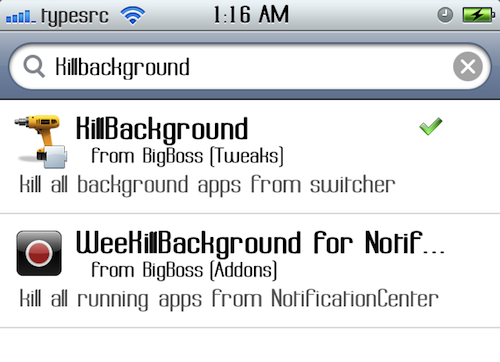
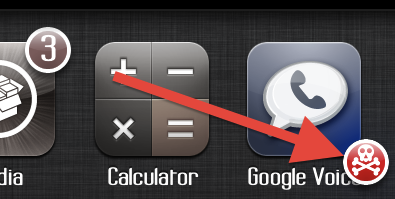
One of the most prized new features of iOS 4 and on was the ability to run many apps at the same time and switch between them easily. One of the little issues with this is that when you close an application, it stays running in the background. Normally this wouldn’t be a problem. But contrary to popular belief, background apps take up a ton of battery life! By the end of the day, you could have every single one of your apps running in the background of your iPhone! Of course you can double-click the home button, tap and hold one of the app icons for a second, then hit the red circle in the top left. Then hit it again for the next app. And again. And again. And again. You’ll have to tap once for every single app that’s open. Done yet? Well, if you happen to be jailbroken, here’s a little tweak from Cydia that will help you. Open Cydia and search for KillBackground. Install the free package by Mathieu Bdard and respring your device. When your phone comes back, you won’t immediately be able to tell that anything is different. But open up a few apps, then double-tap the home button. Tap and hold one of the apps for 1 second, and voilà! You’ll see a little red crossbones icon in the bottom left. One tap and all of your apps are killed! You can also open up your settings app and select KillBackground to configure some different options. Enjoy!

Finally, a good use for an iPod Nano!


You may remember that I wrote this post hating on the new iPod nano because of it’s size and the idiotic idea of a clip. Also, the size of it! You’d lose it in an instant!

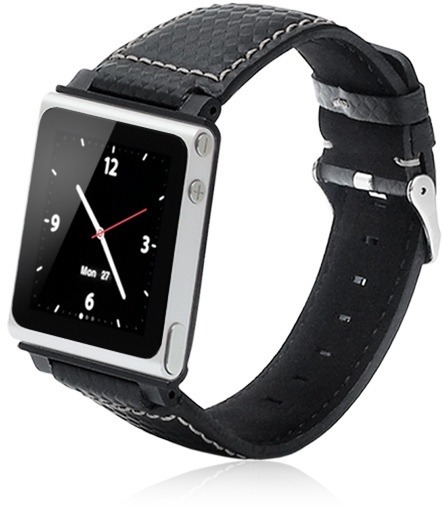
Well, I’m changing my views on this. And it’s all thanks to one accessory called the iWatchz.

Basically, this turns the iPod Nano into a wristband. I thought that sounded stupid, until I tried it. I realized that as a wristband, the iPod nano opens up to a whole other world of possibility. The Nano can act as a stylish watch, which will surely show off your geekyness. But in addition, to have your wristwatch actually be a music player, photo viewer, and FM radio can all come in handy. You don’t have to worry about bringing your iPod with you – you already have all of your music on your wrist. Ha!

Having a wristwatch is something you’re probably already used to. So being able to have all of the iPod features with you EVERYWHERE without having to remember it or lose it? Handy!

The reason I really didn’t like the nano was because they asked you to clip it on to your shirt and proudly display what you’re listening to. You could lose it, it could fall off, and you’d probably forget about it fairly frequently.

Having it as a wristband solves all of the above problems, and allows you to be sure about where your iPod is and not worry about it falling off or losing it.

You can get the iWatchz here, and you can get yourself an iPod nano here. Together, it’ll cost ya about $200. In my opinion, it’s quite a genius combination.

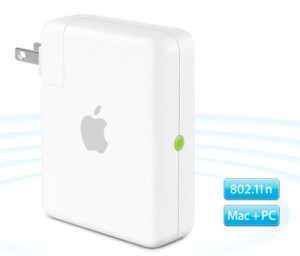
Using AirPort express for AirPlay alongside a Time Capsule

You may remember that a long time ago I reviewed the Time Capsule. It’s a wonderful wireless AP, and all of my data is totally safe.

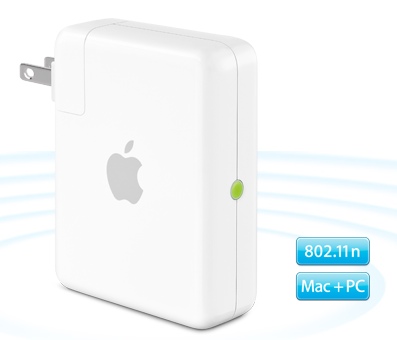
But the Time Capsule doesn’t have AirPlay. On AirPort extremes and expresses, there is a headphone jack, and when connected, you can wirelessly stream your music to your speakers from your iDevice.

I’ve had an airport express for a long time, but I stopped using it when I got my time capsule. After hearing about the AirPlay improvements, I decided to break the thing out.

The AirPort Express creates its own WiFi network, and if I’m connected to that then I won’t be able to backup to my time capsule. Luckily, it is now possible to plug the AirPort Express directly into the Time Capsule, and have them both work as the same wireless network. This means that I can stream music AND backup at the same time!

With this all settled, you will now see the AirPlay icon appear on all of your devices. From this point on, it’s all extremely easy. Just tap the icon and up pops a menu of all AirPlay devices on the network. Tap the speaker system you wish to stream to Voila, we have wireless music!

If you’re on a computer, however, you can only stream your music from iTunes. That is, of course, unless you have an app called AirFoil.

This allows any application on your computer to output sound to your AirPlay speakers.

However, there’s a small issue.

There is a two second delay between when you cause the sound to happen and when it actually comes out of your speakers. On the iDevices, the movies are in sync because they are decoupled 2 seconds back. When you change the volume on your computer, you will see the small notification popup, yet you won’t hear anything for two seconds. Quite annoying.

For videos, AirFoil has included the “AirFoil Video Player.” I don’t know if it’s very good, as I can’t even get it to work without freezing and crashing.

In general, this system is simple and functional. But if you’re trying to stream content from your computer, you will notice an extremely distinct delay. It’s not like that audio quality isn’t good, so all audio (including pandora and other streaming services) work fine.

AirPort Express

AirFoil

iPod Nano

The iPod nano hasn’t felt much love from me so far. Lets get into the details.

Design

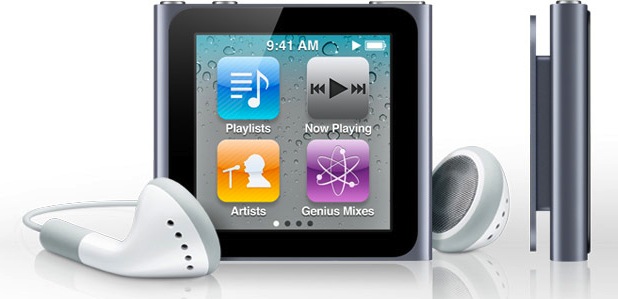
The iPod Nano features a very small and portable design. They tiny little screen has a black bezel that goes across the front of the screen. Apple decided not to totally flatten it out and give it edge to edge glass (which would have been a nice touch, would it have killed you to do that apple?). They turned the screen into one of touch, and makes it very difficult to use if you have sausage fingers. One of my main complaints would be the font size. I have pretty good vision and it hurts my eyes to look at the screen for too long. The iPod Nano has three buttons on it: Volume up, volume down, and lock (Apple is slowly doing away with the hold switch). The iPod Nano has a clip on the back which is an intersting addition. Ads show the nano being clipped onto shirts, bags, pockets, etc. The problem I have with this whole clippy intention is that the way they want you to wear it displays album artwork (or pedometer stats or whatever else for that matter) to everyone around you. I know it’s nice to show off what $1.29 music you were able to afford, but I really don’t need to know what music you are listening to. The nano comes in grey, black, blue, green, yellow, pink, and red.

Interface

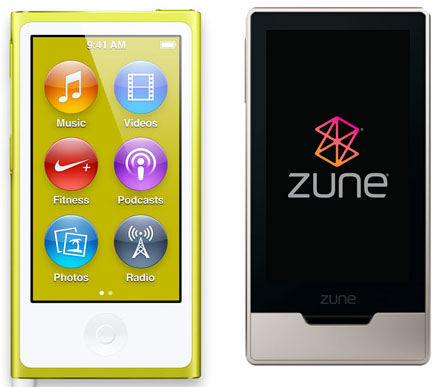
The iPod nano has it’s own software which isn’t iOS but has a very similar interface. As you can tell by the picture on the left is has icons and pages and a wallpaper, but it doesn’t have any apps. You can rearrange all of the icons around on the home screen. Instead of having an app for all music, there are different icons on the home screen for songs, artists, playlists, now playing, genres, etc. The interface inside of the apps is like a shrunken down version of that from iOS. One interesting feature would be that the screen is able to rotate to fit whichever way you have the iPod clipped, but to do this you have to put two fingers on the screen and spin them around whichever way you want to have the screen oriented. It’s a bit disappointing that they couldn’t have at least thrown in an accelerometer to take care of this.

Sound Quality

I was personally a little disappointed with the quality of sound on this device. I found it to lack some of the higher ends, and while it still delivers full sound doesn’t pack that higher punch that other iPods do.

Value

The iPod nano goes for $149 for the 8GB version or $17o for the 16GB version. Personally, I think it’s a little bit of a rip off as the iPod shuffle goes for $50, and the nano is a shuffle with an FM tuner and a touchscreen. Personally, I think that this was a bad decision by apple as a touch screen interface on such a small device is very difficult to navigate, and believe it or not there are still people who just want to listen to music but definitely like having a screen and really don’t need 16o GB of storage space.

iPod nano

The new iPod nano and why I don’t like it

So today apple announced a chutzpah of new stuff (as expected) including a new apple tv, a new iPod touch, a new iPod nano, and a new iPod shuffle. I’ll cover those in a later post, but for now I want to talk about the nano.

What apple did with this design really stood out to me, and not in a good way. First of all, they got rid of the buttons and replaced it with this extremely tiny excuse for a touchscreen, and got rid of the camera and curved edges and put a clip on it. So basically, it is an iPod shuffle with a touchscreen. But my big problem is the clip…

So lets say you have it clipped to your shirt like that picture. If you want to change the song you either have to bend your head over to see the screen and look like an idiot or you have to unclip it and attempt to hold the awkwardly shaped thing to change your music. So then why don’t you just put it in your pocket? Why include the clip? The only other function is to show EVERYBODY ELSE IN THE WORLD what music you are listening to at the moment. But to tell you the truth, nobody really cares what you listen to other than you. So that eliminates the clip. And what’s with the form factor of this thing?! It is a square that barely fills the palm of your hand, and it doesn’t look like it would be very fun to try to hold.

Oter than the clip, the other thing is how they tried to make it an iPod touch-like interface with homescreens. But instead of having apps, ou have things like albums, playlists, genres, etc. Why?! This interface might be cool if you wanted to use apps on it, and if you want apps go get yourself an iPod touch. it is 1/3 bigger (and is so much more confortable to hold) and boo hoo, you can’t tell the world what you are listening to. Oh, darn. That’s too bad.

I mean, nobody really cares about your music! It’s nice to know you are currently listening to the black eyed peas (I guess that explains why you, sir microsoft employee, are line dancing in the middle of your stores [traitor using iPods, don't worry I won't tell. ;-J ]) but nobody cares at all! It’s just an iPod shuffle with a screen. A smaller, less functional iPod touch. Something along those lines.

If you disagree or have anything more to add, comments are welcome. :)

Announcements

Site Change

Just the theme, I mean. Here are the main differences:

Where are the categories and tags?

Look to the right my friend. –>

There is now a little sidebar thingy-ba-whatchamacallit where you can browse tags, categories, monthly archive,  and recent comments. Click on the folder, tag, clock, and speech bubble to navigate it.

How do I get to the RSS and twitter feeds?

Look around at the top right. See those things sticking out over there? I think you can tell which is which by their icons.

Other than that, everything is pretty much the same other than the new theme. There may be some weird error signs around but those should get sorted out soon.

maxswisher.com

Also, maxswisher.com is here! This is going to replace blog.goodmorninggeek.com, and I also have claimed the email address max@maxswisher.com. cool!

Applicational

apps.goodmorninggeek.com is here! The site is called Applicational and is less-in-depth reviews of smaller apps: iPhone apps and widgets. It is published by a friend of mine Jason Botto (jason@apps.goodmorninggeok.com) who I go to school with.

Expect that theme to change to be similar to this one soon as well.

Virtual Watercooler

If you look at the toolbar, you may notice a link called virtual watercooler.

This is a link to the blog of one of my sponsors, Oak Hill Corporation (oakhillcorporation.com).

Comments welcome!

Cover Flow + Remote App + iTunes DJ= Awesome wireless listening experience

Sometimes I like to do nothing but listen to music. My computer on my desk playing music, me sitting on the other side of the room on a pile of stuffed animals. But what do I look at when I listen to my music???? And how do I change the music, request a song in iTunes DJ (itunes 8.1 only), or change the volume??

Well, all of that is now solved.
I always use iTunes DJ for my needs now. It plays my higher rated ones more often, I can request songs, and I can remove songs from the DJ playlist. I have a great set of speakers, and I can turn them up to a very high volume. I must say, the iTunes DJ is very good at thinking what music you want to listen to. And the request feature makes it a very realistic “DJ”. Too bad it doesn’t have a voice… but Apple could definitely put that in there. I mean, they put it in that ipod.. Hey, where is it?, aka, the iPod shuffle.
Question 1: What do I look at when I’m listening to my music?
Answer 1: The awesome cover flow look. I can see what song just played, and what song is coming up. I can put it fullscreen, so that’s all I see- My album artwork of what song is playing, and a few before and after the song that is currently playing.
Question 2: How do I change the music, request a song in iTunes DJ, and control the volume from across the room?
Answer 2: Simple. I have an iPod touch as you may know, and I have a cool app that is made by apple and is called remote. You can hook it up to your iTunes library, and over wifi, you are able to control the music. It also puts your iTunes library as the Music app’s interface, but sadly you can’t rotate to view cover flow. but I can do all that: request a song in iTunes DJ, go to the next song, and even control the iTunes volume.
VIDEO!!!!!!!!!!!

Another reason why Apple rules….

Ah, another day. Standard. I have my iPod touch in my lunchbox, even though we are not aloud to have any electronics at school at all. my lunch is a peach cup, a sunny-D, and a PBJ. Standard. I also have some cheese curls for a snack. Well, it is all normal, when I go to have snack. I eat my cheese curls, Drink some Sunny-D, and put it all away, covering up my iPod touch. Then, 45 mins later, it is lunch. UHOH. I open my lunch box, and what do I see? Sunny-D leaked out of the bottle. ALOT OF IT. so much, that my iPod touch is almost submerged in Sunny-D. So, Secretly from rules, I go off sprinting to the bathroom, and there I take it out and #1- turn it on, make sure it still works. it does, but the contrast is all white, and it is pretty insensitive to touch. So I go off cleaning everything I can, wiping it off with paper towels, and in the end I decide; this is never going to be okay unless I get a sympathetic understanding and knowledgeable adult to help me with my problem…. Ryan to the rescue! ryan is %100 the best teacher known to man, and he is everything I stated before: sympathetic, understanding, and knowledgeable. so he helps me with cleaning it off with rubbing alcohol and putting it upright on the heater vent, and it slowly starts to recover… But when I get picked up I route straight for the apple store, so they can check it out because it is still failing. I bring it in, get an appointment 10 mins after we arrive, and talk to a guy I know there from a previous problem

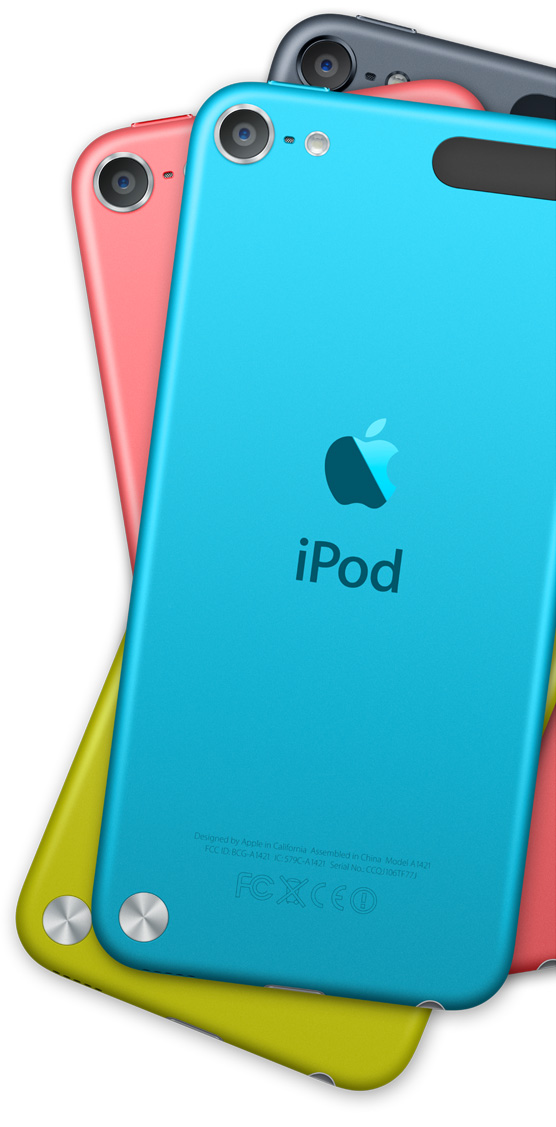
( I know about everyone at this retail store!). my words: my ipod had a little accident involving liquid… and before I can say anything else he takes it and uses a special tool that was like what doctors use to look in your ears and looks in the bottom ports. Apparently, there are liquid submersion sensors inside that turn pink when submerged. Now they would have been pink if Ryan hadn’t put them over the heater, which I think disabled them. But of course I didn’t tell them that, because right after they give me the news about the Liquid Submersion Sensors not going off, he says they will replace it for free. So, here I go, with a brand spanking new iPod touch for free, replacing the old one, too bad I couldn’t keep the old one I would have dissected it and put it on the will next to the old iPod mini! Look at the picture below of the new one before I take it out of it’s packaging. too bad they don’t give it to me in the box.

HandBrake

We all love to watch DVDs right? but sometimes when you want to watch them on the go, you have to have a player or something right? so thats why we get an iPod, or PSP, or iPhone. but you have to buy the right format from iTunes of the movie. but i just wanted my dvd on my iPod. dundundunda! here domes HandBrake. HandBrake is a 100% free application the transfers DVDs to most formats for a player. the newest version is only for OSX, but there are older versions for windows and linux. it has presets for things like iPhone, iPod lo-res, hi-res, PSP, and in the following formats: .mp4, .mkv, .avi, and .ogm. i use this al of the time on ipod lo-res for my dvds. for iPods, iPhones, PSPs, etc. you need to output it to .mp4. i use it for all of my DVDs.
Download!
Mac OSX