How to Wirelessly Transfer Files to a Galaxy Nexus

As you may know, the Galaxy Nexus does not have an option for USB Mass Storage. To transfer any files directly from a computer to the phone, it is necessary to plug it in with a USB Cable and open Google’s proprietary Android File Transfer application.

But what if you don’t have a cable? What then?

There’s a couple things you could do. Email works for smaller files, however for larger files things may go slowly and fall apart.

If you have a server or CloudApp or Puush account, you could upload it and then email  the link to yourself. This would work usually, however the Galaxy Nexus’s download manager often will download most of it, then suddenly fail at the end.

There’s also Bluetooth, which is often unreliable. I can’t transfer any files between my Mac and my Nexus over bluetooth, as it gives me a random warning which is just not worth trying to figure out.

There’s really only one good way: DROPBOX.

In case you don’t know, Dropbox is a service that allows you to have a folder on all of your computers that constantly stay in sync. When one file is added on one computer, it magically appears in the Dropbox folder of all of the other computers too. You have 2GB of space, and the real important part is that they have an Android app as well.

Simply open your Dropbox folder, transfer the file in, and wait a few moments for it to upload to the cloud. Then, open the free app on your Nexus. Tap the file that you just uploaded from your computer, and it should download and open. Voila, that’s how to wirelessly transfer a file from your computer to your Nexus without using bluetooth, servers, or anything else that’s ridiculously unreliable and confusing.

Download Dropbox for your Computer

Download Dropbox for Android

Spotify for Android gets Overhauled

Pretty new artist page

Spotify is by far the best music service I have ever come across. For $10 a month, I get all of the new songs streamed to my computer and phone. For the price of one album a month, I can have as many songs and listen to all of them as many times as I want without any ads or issues. It’s magical!

The only problem is the the android app. It really lacks – the interface is a little bit hard to use, it doesn’t offer as much functionality as the desktop app, and the graphics are quite low resolution.

Well, not anymore. Spotify has released a preview of their new app, which features facebook- and twitter-like slide-out menus, cleaner, easier graphics, and a nicer, more refined playing menu. The interface is also a lot faster in general.

A nice new player interface

The application isn’t available on Google Play quite yet, as they’re working on adding a few more features like Last.fm scrobbling, folders, and more. However, if you’d like to update now, you can still download the preview of the new app.

First, you’ll need to open Settings > Applications and check the box that allows you to install applications from unknown sources. Next, open this post on your phone and tap here. The apk file should download. Next, pull down the notifications and tap the downloaded file. Follow the steps and in a few taps you’ll be enjoying the new spotify interface!

I’m excited that spotify is finally cleaning up their Android app – it was getting a bit, well, old.

Instagram Bought by Facebook for $1 BILLION

Remember Instagram, the fun little quirky photo sharing service that just released an Android application?

As you may know, they’ve been growing in size since their launch and Instagram has become an extremely large and popular service.

Because of this, it was inevitable that they would eventually be purchased by an extremely large company… and who better than facebook?

First of all, $1,000,000,000 is a lot of money. A LOT. I didn’t really think that Instagram could be worth that much.

Second, a little note to Zuck and the whole facebook crew: Please, please, please, please don’t screw this up. Please don’t force it to be built in to the facebook interface. Don’t try to stick instagram into facebook, you’d be doing everybody a disservice. Also, don’t just get rid of the entire thing to eliminate competition.

We will have to see what Facebook is hoping to do with this photo-sharing giant, and I honestly hope that they don’t screw it up.

Instagram for Android

Finally. At long, long, long, long, long, long, long last. Instagram has released their official Android Application.

In case you don’t know, Instagram is a photo-sharing platform which incorporates different fun-style effects and third party sharing into the mix. It’s been available for the iPhone since late 2010 and has collected over 30 million users. Yeah. Whow.

There were many speculations of an Android App over the past while, but no confirmed release date.

Now that Instagram has released their Android version, they are well on their way to a giant user base. After all, Android does have more of a market share than the iPhone.

As far as the application goes, it’s the exact same as the iPhone with one important exception: The android application does not have the tilt-shift function, a popular option among Instagrammers. (Tilt-shift is where a selected part of the photo is in focus and the rest is not.)

If you are an android user longing for some instagrammal love, click here to download the free app for android. Enjoy!

Google Ditches Android Market for Google Play

Play logo

Android Market, the typical android counterpart to iOS. Widely used, known, and enjoyed.

Recently, Google added Movies, Music, and Books to the Market. Thanks to the general nature of the word Market, no name change was necessary.

All of your music showed up in the separate Google Music app. Your movies in the Google Movies app. Simple enough, right?

Google disagrees.

Google has completely ditched that entire scheme around a new name: “Google Play”. Google Play is the new name for the Android Market, while the Google Music app has changed to “Google Play Music” and movies changed accordingly to “Google Play Movies.”

Honestly, it’s nice that they’re congregating all of their purchases under one name, however “Google Play Movies” sounds like someone with awful grammar trying to say Google Plays Movies. I think they just need a semicolon – Google Play: Movies… actually, no. They just should have gone with something other than Play.

The new logo and name are all that has changed – the general interfaces are still identical, so nobody needs to freak over yet another interface change. However, it’s still a bit annoying that Google decided to mix everything up – all at once – and will probably manage to confuse a lot of people in the process.

Google Chrome for Android Beta Released

Android has always had a great browser built into it, but that browser was never Chrome.

Well, that’s about to change.

Kind of.

Today, Google has released a beta version of Chrome onto the Android Market… for Android 4.0 ICS phones. Luckily, thanks to my Galaxy Nexus, I get to try it out and give you this review.

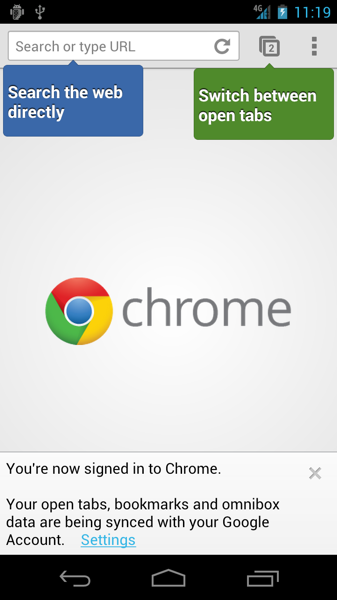
First off after opening this app you’ll notice a pretty little googlicious introduction to the app.

Firstopen

Quite simple, quite clean, quite google.

I’m going to warn you in advance – many of the features in the Chrome for Android application are identical to those that are available on the desktop version of the browser.

Tabbing

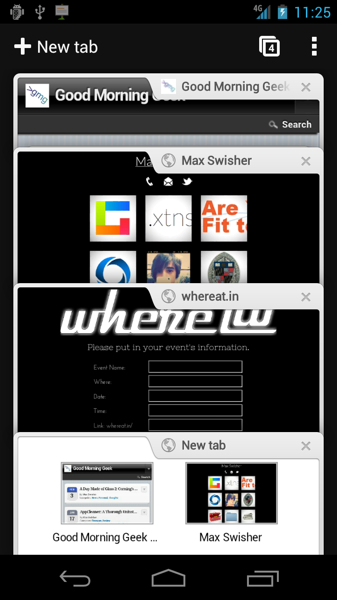
In my opinion, the tabbing interface has been improved from the tabbing of other mobile browsers. Instead of just a list of tiles, Chrome gives you a very pretty sorting-through-a-card-deck like interface.

Tabbing

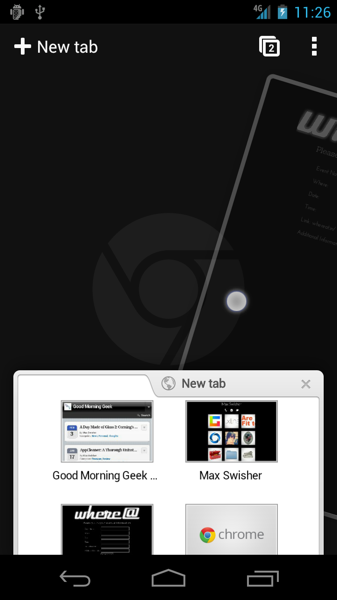
Don’t want a tab? Just slide it off to either side and it will make a spin-like motion into nothingness. These little effects add some very nice feel to the app.

Slideoff

Sync

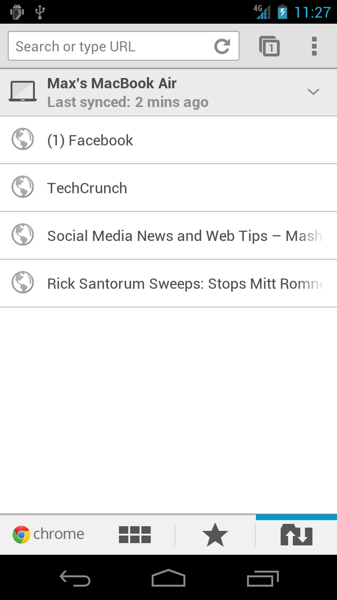
The other coolest feature of the Chrome for Android application would be its ability to sync with Google Chrome for Mac and Windows. If you’ve signed in to Chrome on your desktop (Wrench thing > Sign in to chrome…), then all of your bookmarks, history, and tabs are already synced up.

This means that you can easily retrieve them on the new tab page in Chrome for Android. This grants access to one, extremely awesome thing: live tabs.

Basically, if you have a set of tabs open on your computer and need to go somewhere, you can just leave your computer and all of your tabs will show up on Chrome for Android.

Gettabs

Pretty awesome, right? I must say, it’s not perfect – It takes a while for the tabs to get synced, and there isn’t an easy button to tell your computer and/or phone to sync. Remember though, this app is only in beta.

It’s the same deal with bookmarks – they will all get synced across your phone and computer(s).

Feel/Speed

If you use Chrome for Desktop on a daily basis, you already know the feel of the app. Google’s minimalistic style and code makes the app very light and quick to the touch. Pinch to zoom works fine, things render great, and the only thing missing is (of course) flash. But hey, who needs that anyways? We have HTML5!

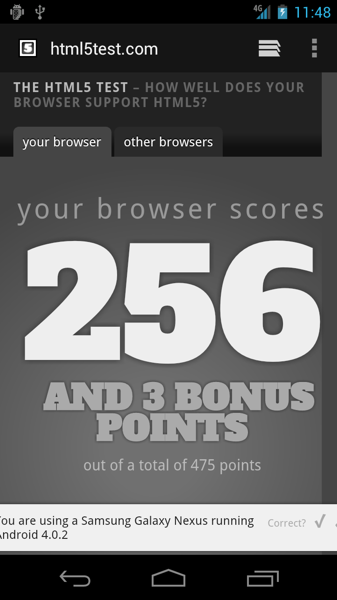
In fact, lets compare. First, here is the html5test.com result for the built-in browser.

Html5def

Not bad, actually – Firefox Mobile’s score is down the drain.

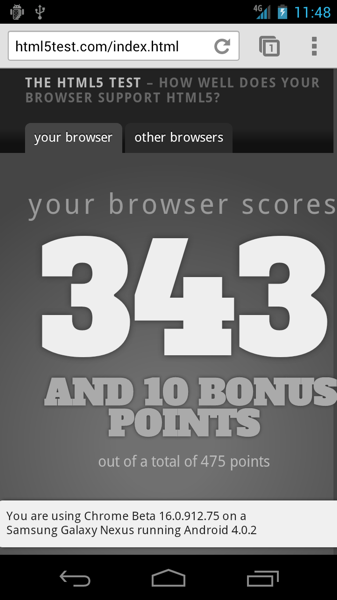
Now, lets test out chrome:

Html5ch

Sweet!

As I said, who needs flash anyways?!

Conclusion

Chrome Beta for Android is definitely a nice browser – if you have a device running Android 4.0 in the US, UK, Canada, France, Germany, Spain, Australia, Japan, Korea, Mexico, Argentina, or Brazil, it’s definitely something you should try out.

Otherwise, I don’t know when Chrome for Android will be released to the masses.

Enjoy!

Link to Chrome Beta in the Android Market

Otterbox Defender Series for Galaxy Nexus

Over my years of reviewing and testing, no other case company has ever been able to  replicate the protective properties of Otterbox’s cases. When I plan on dropping my phone off of a two story building, they’re the only ones with a case I can trust.

That’s why when I got my Galaxy Nexus, I knew that the case I would be getting would be from otterbox. Here’s my scoop.

Design

The case consists of two main parts: an outer silicone skin, and an inner hard plastic shell (with a screen protector built in).

The outer silicone skin has a nice grip and absorbs a majority of the initial shock if you happen to drop the device. It has openings for all ports, so you can attach everything you need without having to ever remove the case. This is a nice feature, although it does add more parts and complexity to the overall design of the case.

The Flaw

The inner shell is the hard layer of protection for the device. It has two parts: a bottom and a top section, which snap around the phone. This is where the only problem with the case is.

A "practically indestructible" case?

The top section is a frame around the screen (with openings for speakers, cameras, lights, etc.) which also has a screen protecter glued in. This means that you need to clean off the screen protector of the case in addition to your phone’s screen and try to get them together before any other dust settles. The only issue with this is that if any dust settles after you’ve snapped it on, good luck getting it off – without breaking it, that is. After my first attempt at putting it together, I noticed a bunch of dust particles under the protector. So I take the case off, but the tiny snaps on the edges that hold the case together aren’t willing to let go. In the end, I need to pry them apart to even get to my phone. This bent the frame a bit. On my second attempt at taking the case off, I tried to use a key in the tiny slots next to the snaps. I ended up cracking the frame, and it still took a good ten minutes for me to get the case off of the device.

Conclusion

Otterbox was always (and most likely will always be) known for it’s super-protective lines of cases. At $50, the materials are not very well-built and are extremely prone to cracking and bending. Although it may protect your device, the case is oddly fragile for its super-hefty title. I can’t say I don’t recommend this case, as the protection it offers is above-par, but I can’t highly recommend it as it is fragile and the plastic materials are prone to breaking and bending.

If you want to pick one up for yourself, click here to be redirected to the Otterbox page.

P.S. Thank you otterbox for sending me this awesome (but fragile) case!

The Galaxy Nexus Problem: Battery Life

I’ve always been wondering what the big problem with the Galaxy nexus is. It has an amazing dual core processor, a glorious screen, flawless software, and LTE speeds. The camera is less than impressive, but it’s really not that bad.

But now, I’ve found the issue. Battery Life.

The Galaxy Nexus lasts for about 3 hours and 40 minutes. That’s a new record for the shortest battery life of a smartphone. Ouch.

Apparently the issue is actually related to software, where android 4.0 is keeping the CPU from sleeping. While verizon is busy trying to work out those kinks, they’re selling an extended battery for 50% off (not $25 from $50). I’ve ordered one and am awaiting it in the mail.

The only fear of mine is that Verizon releases an OTA (over the air) update for the phone that fixes the issue, then I’m not able to download the update because I’m rooted. This was the case on my Droid Incredible, but from what I’ve read it shouldn’t happen with the Nexus. I’ve also read that I’ll need to re-root, which shouldn’t be a problem.

Of course I’ll keep everybody in the loop about rooting and OTA updates, but until then be careful when buying a Nexus – you should probably get an extended battery as well.

Android Wifi Tether Now Working on Galaxy Nexus

The only real reason I ever root my phone is to use the Wifi Tether app. Wifi Tether is a free application that allows you to get the internet from your rooted android phone onto your computer, without having to pay for Verizon’s ridiculous tethering plans.

Right after I rooted, I installed Wifi Tether and was disappointed when it gave me an error and didn’t work. I went to their Google Code page and there was already a very popular thread about it’s dysfunctionality on the Galaxy Nexus.

Well, rooters unite – Wifi Tether has just released an experimental pre-beta version that has support for the Nexus. Although it’s considered “experimental,” I’ve had absolutely no problems with it and I’m loving the 4G speeds. It’s like having a 4G Mifi with no data limits and a much cheaper data plan ($30 a month!).

Click Here to download the app. I recommend browsing to this page on your phone (here’s a shortlink to save you a little bit of time: http://wp.me/p1GtXy-vW) and hitting that download link.

Once it’s downloaded, go into Settings > Security and check the box that says “Install Apps from Unknown Sources.” This will allow you to install the apk file you just downloaded.

Now open your downloads and tap the apk file I told you to download up there, and you will go through a quick install process.

Open up the app and you’re ready to tether over 4G speeds!

If you’re not rooted yet and would like to be, click here for my post on how to root the Galaxy Nexus.

Enjoy your 4G Tethering!

How-To: Root the Galaxy Nexus LTE

I just got my hands on this beautiful Galaxy Nexus. I love it so far, and a full review is in the making.

But in the meantime, I figured I might as well show you how to root it.

So here you go.

(FYI: This how-to only applies to mac)

1. Download the files

First, download this file: Android root tools


Unzip it and put the folder on your desktop.

Now we can get started!

1. Unlock your Bootloader

Unfortunately, this is necessary with the LTE version of the galaxy nexus. It can be a little bit risky at times and is said to void your warrantee, but you can always undo this part.

First, plug in your Galaxy Nexus to your Mac and hold down the power button to turn the phone off.

Now, hold down both the up and down volume buttons at the same time and hold down the power button. You should be greeted with a screen that looks like this (if not, shutdown and try again):

If you’re having a lot of trouble with this, here’s a video that I made showing you how:

Open up Terminal.app and type the following:

./~/Desktop/androidsdk/platform-tools/fastboot-mac oem unlock

You should see a prompt on your Nexus’ screen asking if you want to unlock the bootloader. Press the volume up key followed by the power key. You’re done!

Once you’re back at the android-open-thing screen, hit the power button to start the phone.

Now, it should boot up and start cycling through the boot animation. It may do this for a good ten minutes – whatever you do, DO NOT PULL THE BATTERY! (I learned this the hard way).

Eventually your Nexus will boot up, and you’ll be safe and sound in your little Ice Cream Igloo.

2. Root

Now it’s time to ROOT!

Put your phone back into fastboot mode plugged into your computer.

Open up Terminal and type this:

chmod +x ~/Desktop/androidsdk/r2-galaxynexus-superboot/install-superboot-mac.sh (hit enter)

./~/Desktop/androidsdk/r2-galaxynexus-superboot/install-superboot-mac.sh (hit enter)

That should be it! Your phone should start up.

It may hang on the Google logo for a while – If this happens, wait about 10 minutes and pull and replace the battery. Turn it on and it should cycle through the boot animation for a few minutes.

Once your phone boots up, you’ll be completely rooted! Enjoy!


Verizon Can’t Get it Right

One of the most anticipated phones if the year is the Galaxy Nexus. It boasts a ton of new features, courtesy of Andoid 4.0.

One of Apple’s strongest points is how they release their phones. They send out an invite to an event, then at the event make a clear availability date. This causes people to get excited for the product and even line up for it.

Verizon took a different approach. They added a release date of Dec. 9 to the stores’ databases, and never made an official announcement. Everyone gets excited for that day, but Verizon has decided to stamp that down as well. Verizon took down the date from the databases and replaced it with “Launch Date Coming Soon.”

I don’t understand what Verizon is going for. Are they trying to get hype? Are they attempting to draw more in with their deadline extension? Or are the marketing people really just that clueless?

Many people have their two year upgrades coming up and would like to upgrade to the Nexus, but with so much waiting and games people are beginning to lose patience with Verizon. It’s not sure whether the phone isn’t actually going to be released on the 9th, and other sources are saying that it could be on the 13th. Who knows?

Verizon either needs to stick to the leaked dates to encourage more hype assurance or just give us a solid, set release date.

Why Google+ Is Failing

When I was at the Teens In Tech conference, a speaker told me this:

For your product to succeed, it either must be a new idea or be better than a previous one.

It makes sense – why would anyone switch to your product if there’s already one that does the same thing? Your product needs to have more to offer so people would actually have a reason to “convert.”

Unfortunately, there are few tech companies that succeed with new ideas – so a lot take old ideas and refresh them to make ‘em better. For example, every Apple product ever created; The iPhone wasn’t the first phone in the world – it was just better than the rest; The iPod wasn’t the first small music player ever created – it was just better because it could hold so many more songs and didn’t need CDs or Cassettes.

Okay, so lets take a look at Google+. It’s a great social network that has tons of new features that are definitely in demand. Who would wan’t multi-person video chat, along with a slew of easier to manage privacy features?

“Okay, so Google+ “better” than facebook – but why isn’t it succeeding?”. This is a question I’ve been asked many times.

Lets think about it in terms of a lamp (yes, the one on your desk). First, we have our facebook: A standard lamp with a normal switch that emits very bright light. Then, lets look at our Google+: A large, fancy lamp with pretty designs on it, a bendable neck, and voice activated controls – but we forgot to add in a socket for a lightbulb.

In this analogy, our Google+ Lamp is “better” than our facebook lamp – but it doesn’t do what people want to use it for (illumination).

Lets take that analogy back to Facebook and Google+. What is the real reason people ever go on facebook?

The real reason is their user base. There are very very few people who aren’t on facebook, and there are very very few people on Google+. Google+ has all the new doohickeys and thingamajigs, but it’s forgetting the light bulb (user base).

And because nobody is on Google+, nobody wants to join – they’re satisfied with Facebook and their 1500+ “friends.” What’s the use of having a ten person video chat if there’s not even ten people on Google+?

Google+ is a good idea, with a perfect execution – but the social networking field has been completely dominated by Facebook and Twitter. It’s unfortunately like this for many social internet startups: many of them rely on a user-base to be the least bit useful, and without a user base you won’t be able to expand your user base. You can get a user base by having a user base, because if you have a small user base people want to join to be part of that user base, which makes more people want to join etc.

Hence the reason most social startups fail. Gaining a user-base is a domino effect, with the first domino being a giant brick wall. You need to hope that something will come and knock it over, as getting the domino train started is definitely the hardest aspect of the whole process.